Unknown Device in Apple Find My That Won't Stay Deleted: Cause and Fix

This is an account of an unknown device appearing in Apple’s Find My app and refusing to stay gone — and what Apple support eventually revealed as the cause.
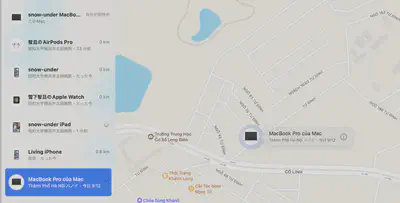
A MacBook in Hanoi Appeared in Find My
One day I opened the Find My app to check my registered devices, and found an unfamiliar MacBook Pro listed. Its location: Hanoi, Vietnam. I have never been to Vietnam.
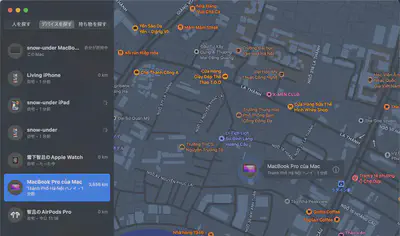
Zooming into the map, it appeared to be located in a residential area.
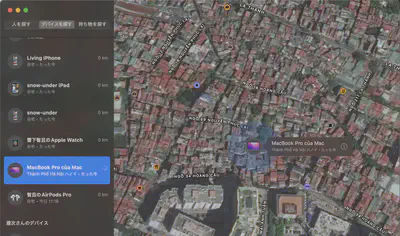

Deleting It Only Made It Come Back
I removed the device from the list, but the next day it reappeared at a different location.
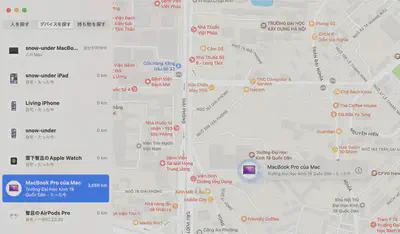
Weeks Passed With No Resolution
Since there was no obvious harm being done, I left it alone and kept an eye on it. The device continued to move around to new locations every few days.
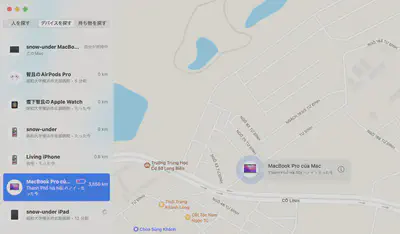
Eventually the discomfort won out and I contacted Apple support.
Apple Support Escalation
- Chat support → “This needs a specialist by phone”
- Phone specialist → “I need to escalate this to our internal engineers”
- Apple engineers respond → several days later
The Cause: A Mac Reset Without Signing Out of iCloud
The Apple engineer’s explanation:
This phenomenon occurs when a device is reset without first signing out of iCloud.
The device in Hanoi was not a hacker’s machine or evidence of unauthorized access. It was a Mac that had been factory reset while still signed into iCloud, which caused it to remain associated with my Apple ID in the system.
The most likely candidate: a MacBook I had sold on Yahoo Auctions (a Japanese auction platform similar to eBay). I had probably forgotten to sign out of iCloud before resetting it.
How to Remove It: Erase Before Deleting
When I contacted Apple support, the device could not be cleanly removed in my case. However, Apple’s official guidance describes a procedure for removing devices you no longer have physical access to. The key step is erasing before deleting.
Simply removing the device from the list is not enough. If Activation Lock is still active, the device will reappear the next time it comes online. The correct approach is to erase the device first, then delete it from the list.
Steps to remotely erase and remove a device via iCloud.com:
- Sign in to iCloud.com
- Open “Find Devices”
- Select the device you want to remove → click “Erase”
- Once the erase is confirmed, click “Remove Device”
Reference: Apple Support — Remove a device from iCloud.com
In my case, the situation did not resolve even after following up with Apple support. Depending on the device’s state and history, these steps may not work in every scenario.
How to Prevent This When Selling a Mac
Before selling, giving away, or disposing of a Mac or iPhone, always sign out of iCloud before resetting.
Correct procedure for Mac:
- Open Apple menu → System Settings → Apple ID
- Click “Sign Out” in the bottom-left corner
- Choose whether to keep iCloud data on the Mac, then confirm sign-out
- Then erase the Mac: System Settings → General → Transfer or Reset → Erase All Content and Settings
Following this order prevents the device from remaining linked to your Apple ID after it changes hands. If you are buying a used Mac, it is also worth confirming after purchase that the previous owner’s Apple ID has been properly removed.

Tomokatsu Yukishita (雪下 智且)
Engineering Manager / Real Estate Transaction Agent
Engineering manager connecting embedded development with cloud and AI. I apply quality standards from mission-critical systems to modern product and development workflows.