Cleaning My MacBook Keyboard with WHOOSH! and KeyboardCleanTool
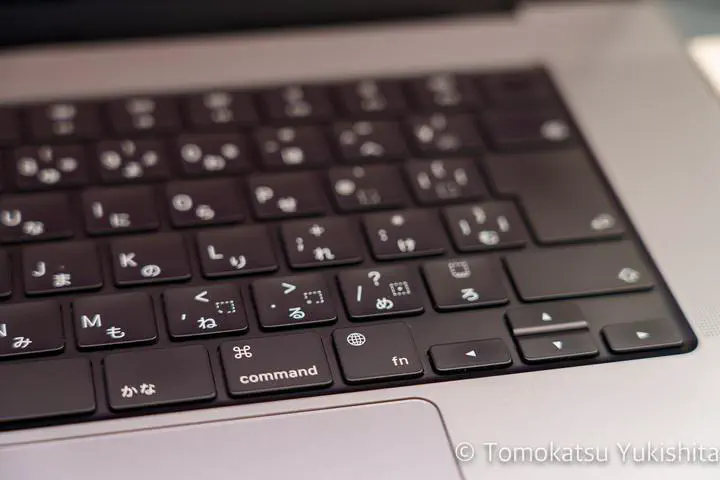 Image credit: Tomokatsu Yukishita
I use a MacBook every day, and my biggest frustration has always been how quickly the keyboard attracts fingerprints and oily smudges. No matter how often I wash my hands, the dark keycaps end up coated in grime. I tried cleaning it with WHOOSH! and used KeyboardCleanTool to stop accidental keypresses.
The Solution: WHOOSH Screen Cleaner

While browsing Amazon for a well-reviewed screen cleaner, I came across WHOOSH!.
What Is in the Box

I bought the two-bottle set (large and small) for JPY 3,840.
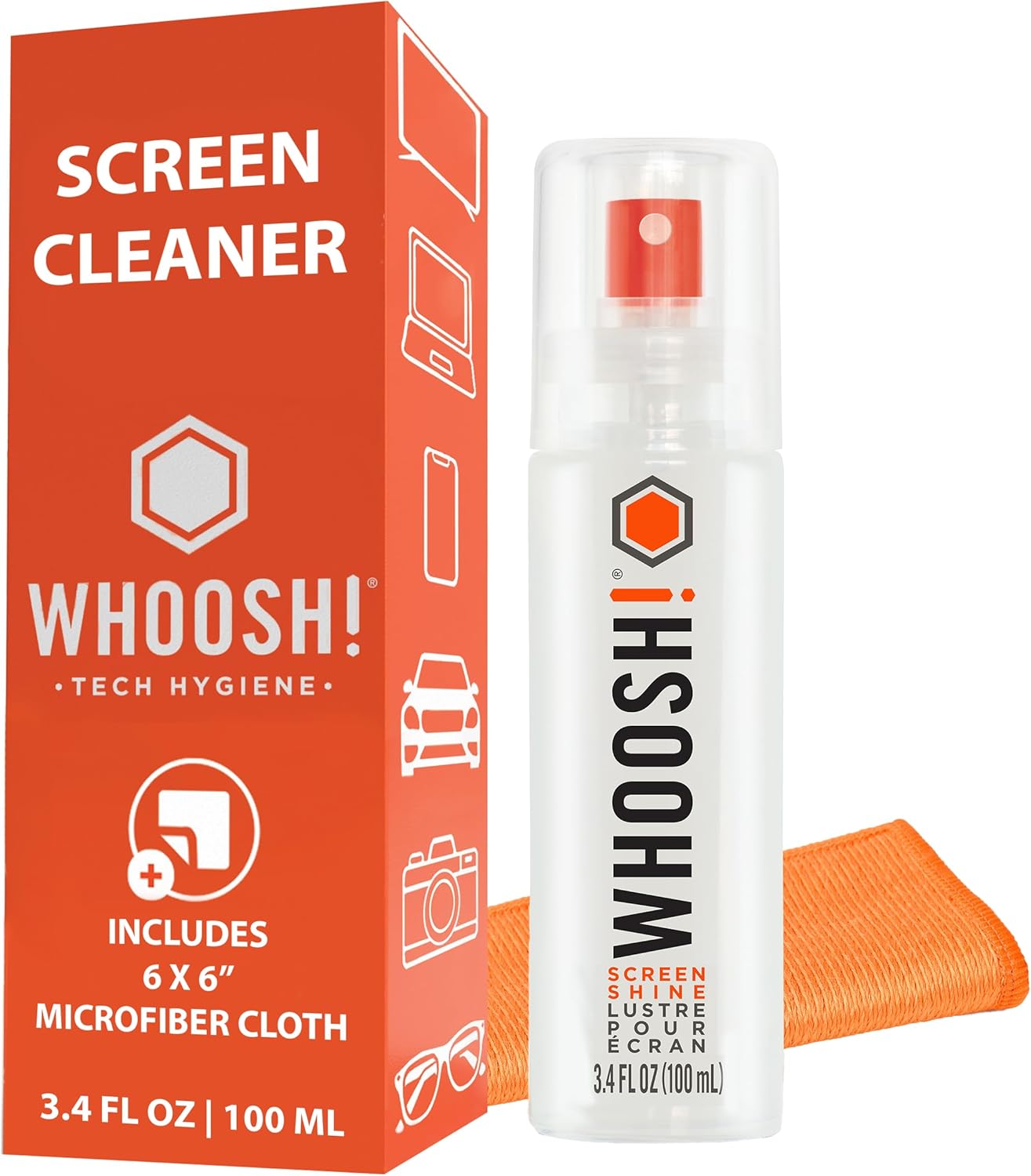
The Japanese product description reads a bit like machine translation, but the packaging also claims antibacterial properties. I did not test that claim.
Cleaning the Keyboard
This is how I used it. For model-specific cleaning instructions, see Apple’s guidance.
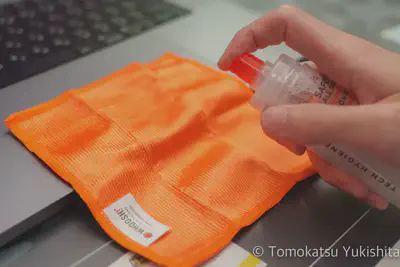
I applied the cleaner to the included cloth and wiped the keyboard. Do not spray directly onto the keyboard — liquid near the keys can cause damage.
Prevent Accidental Input with KeyboardCleanTool
On my MacBook, touching the keys turns it on, which gets in the way of cleaning.
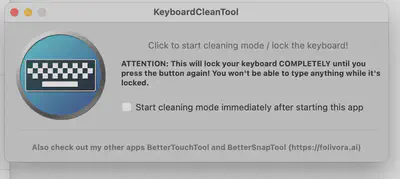
The solution is KeyboardCleanTool, a free macOS utility that completely locks keyboard and TouchBar input.
KeyboardCleanTool — folivora.ai
Launch the app, click the button, and all key input is disabled until you click again. This prevents accidental key input while wiping.
Results
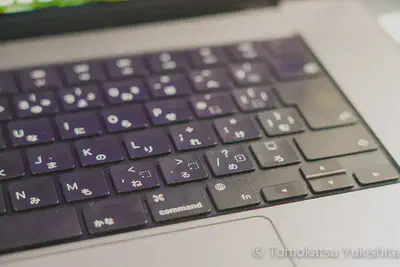
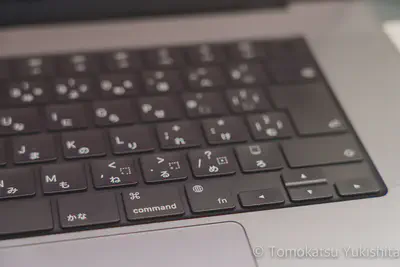
After wiping, the fingerprints and oily marks were much less visible.

Before and After
Before
After
Notes on Screen Cleaning and Long-Term Cost
On MacBook Displays
WHOOSH! is marketed primarily as a screen cleaner. When I used it on the MacBook display (which has a glossy coating), it left a few slight streaks. The results on the screen were less convincing than on the keyboard.
Cost Per Year Is Very Low
The smallest bottle previously lasted me about a year. This set contains more cleaner, so I expect it to last longer.
Frequently Asked Questions
Can I use water or alcohol instead?
A dedicated cleaner is not the only option. Apple describes using a soft cloth dampened with water for Mac notebook surfaces and screens. See Apple’s instructions for your model and display finish.
How often should I clean?
I clean whenever it looks noticeably dirty.
Does it work on all MacBook models?
I have not tested every MacBook model. Check the app’s requirements and the cleaning instructions for your machine.
Summary
| Item | Assessment |
|---|---|
| Keyboard cleaning | Fingerprints and oily marks were less visible after wiping |
| Antibacterial claim | Present on packaging; hard to verify |
| Bottle life | The smallest bottle lasted me about a year |
| Screen use | May leave slight streaks on glossy displays |
| KeyboardCleanTool | Prevented accidental key input during cleaning |
The keyboard cleaned up well, but I was less happy with the streaks left on the screen.

Tomokatsu Yukishita (雪下 智且)
Engineering Manager / Real Estate Transaction Agent
I work on automotive software and write about Mac setups, Raspberry Pi projects, and photography gear I use.